
Edit · Preview
Fix it, extend it, light it.
Edit Studio is designed for targeted changes: remove or replace objects, extend the canvas, relight a scene, upscale and work in layers.
Preview. AI generation is not connected yet. Everything described here is how LanternCut is designed to work; screenshots show the interface preview with sample data.
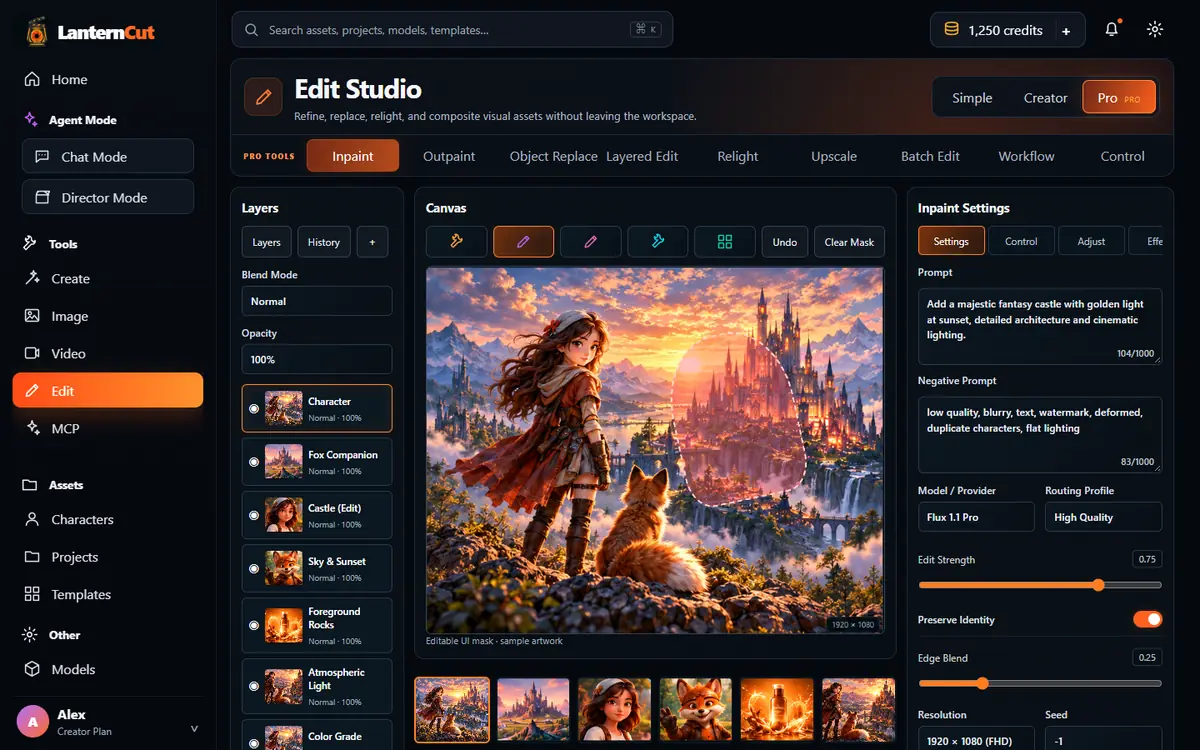
What it is designed to do
Edit in LanternCut
Masks and inpainting
Paint a mask and describe what should change inside it.
Outpainting
Extend the canvas to a new aspect ratio.
Relight and upscale
Change the lighting mood and increase resolution.
Layers and comparison
Work in layers and compare before and after.
How it works
Four steps.
Editing is planned to use open image models and premium edit models. Face swapping is not offered. See the safety commitments.
Open an image
From your project, a render or an upload you have rights to.
Choose a tool
Each tool shows only its own controls.
Describe the change
Write what should happen.
Compare and keep
Check before and after, then save.
Simple · Creator · Pro
Same tool, three levels.
Switch level inside the workspace. Levels are interface depth, not prices.
| Simple | Creator | Pro |
|---|---|---|
| One-click tools: remove background, erase, enhance, crop | Masks, references and edit strength | Layers, inpaint/outpaint, relight, batch edit |
Questions
Questions about Edit
Is face swap available?
No. LanternCut does not offer face swapping, and it is not planned.
Can I edit now?
The editing interface is in the preview with a sample comparison. AI editing is not connected yet.
Try LanternCut with a demo account.
When generation goes live, the demo account gives you 1 image and 1 five-second video on LanternCut Open models. Until then, explore the interface preview.