
Image · Preview
Images with a clear direction.
Image Studio is designed for text-to-image and image-to-image work with reference images, styles, aspect ratios and variations, on open and premium models.
Preview. AI generation is not connected yet. Everything described here is how LanternCut is designed to work; screenshots show the interface preview with sample data.
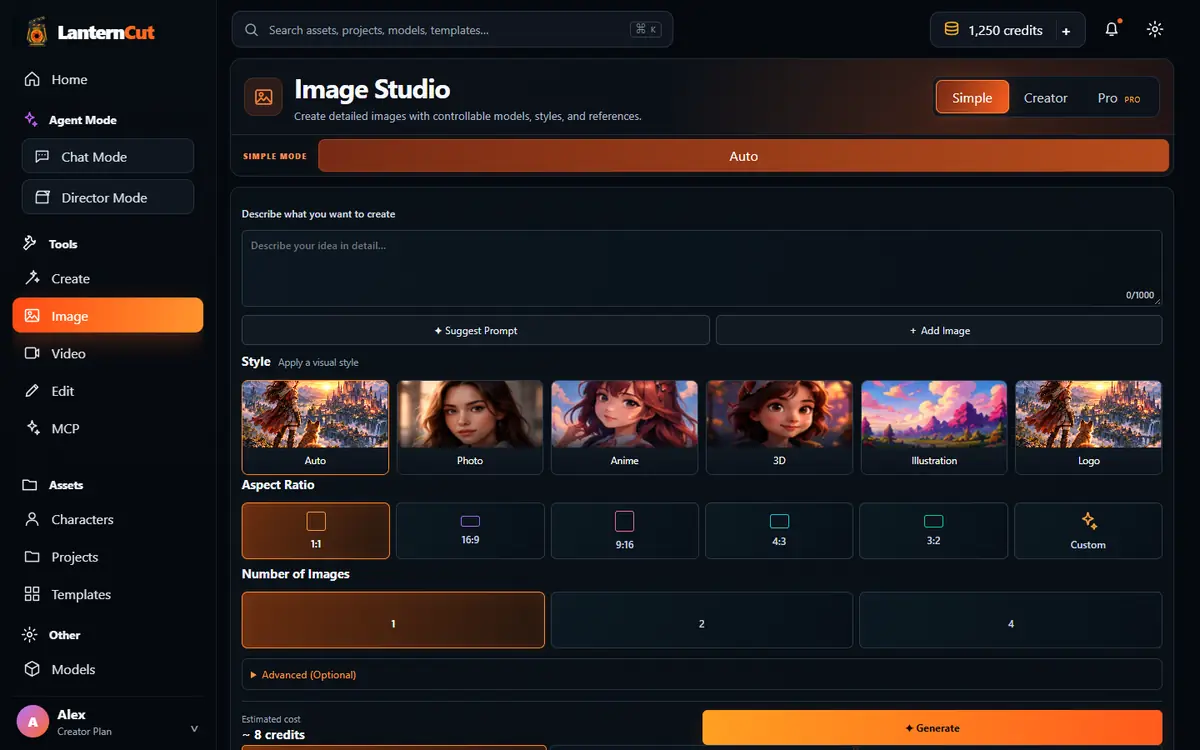
What it is designed to do
Image in LanternCut
Prompt and references
Describe the image and add reference images for subject, style or composition.
Styles and formats
Pick a style preset, aspect ratio, resolution and number of variations.
Your cast in the frame
Bring characters from your cast so they look the same across images.
Choose the model
Pick an open or premium model, or let a Budget / Balanced / Best setting choose (planned).
How it works
Four steps.
Planned image models include LanternCut Open models such as Qwen-Image, Z-Image Turbo and SDXL, and premium models through vendor APIs. See the image catalogue.
Describe
Write a prompt or start from a template.
Reference
Add images or a character from your cast.
Generate variations
Compare several options side by side.
Refine
Send the best one to Edit, or into a scene.
Simple · Creator · Pro
Same tool, three levels.
Switch level inside the workspace. Levels are interface depth, not prices.
| Simple | Creator | Pro |
|---|---|---|
| Prompt, style and aspect ratio | Reference controls, resolution and variations | Advanced sampling, batch and workflow settings |
Questions
Questions about Image
Can I generate images now?
Not yet. The Image Studio interface is in the preview; generation will connect when the backend is ready.
Will I own what I make?
Commercial rights are planned on every paid plan. Final terms will be published before paid plans open.
Try LanternCut with a demo account.
When generation goes live, the demo account gives you 1 image and 1 five-second video on LanternCut Open models. Until then, explore the interface preview.